
docker-compose.yml or your running containers, recreates the services under the site’s own user, copies your data across and switches your domain to the new containers once they answer. Your original containers are stopped, never removed, and a single button puts everything back.
This can be found on the site’s Site tab, under Site Functions, as Convert to a container site. It’s shown on Proxy Pass sites only, to the account owner and admins.

What you need
- A Proxy Pass site whose target is a port on this server, published by a container you run yourself.
- The containers running, or a
docker-compose.ymlsomewhere in the site’s home directory. - Images that come from a registry. A service that builds from source (
build:) needs its image pushed to a registry first.
Conversion follows the same rules as importing from Docker Compose. Privileged containers, host networking and device access aren’t supported, and a Compose file that uses them is refused with the reason shown.
Step 1: Detect
The first step shows what Cito found: where the site points now, the containers that belong to it and why each one matched, and the Docker volumes they use.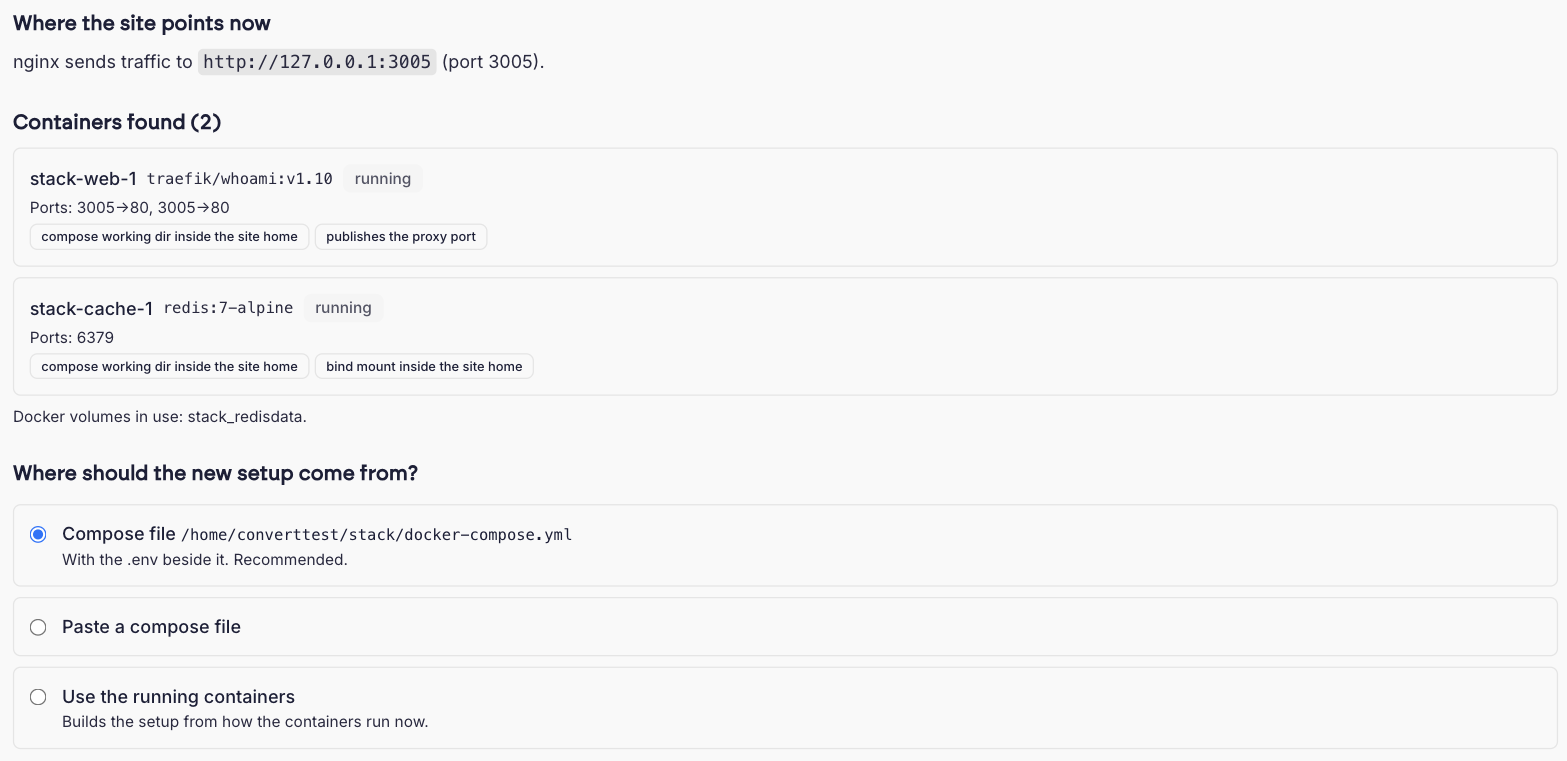 Choose where the new setup should come from:
Step 2: Review
Review the services Cito will create. The service that publishes the proxied port becomes the primaryweb service; the rest are added as services.
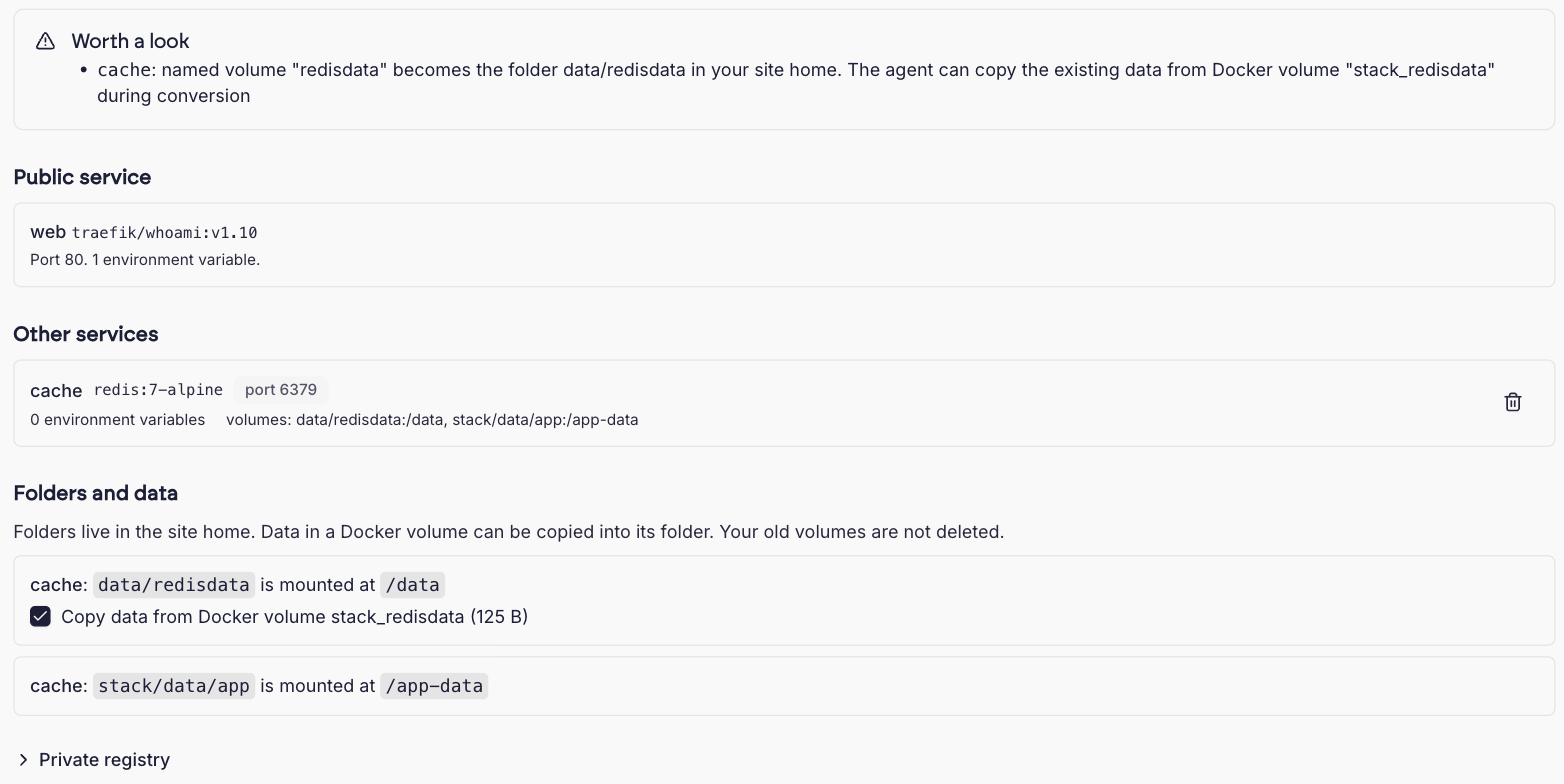
- Worth a look lists anything Cito changed in translation, such as a named Docker volume that becomes a folder in your home. Errors that block the conversion are listed in red, and Next stays disabled until they’re fixed.
- Use the bin icon on a service to leave it out. The site is converted without it.
- Values needed appears when the Compose file uses a
${VARIABLE}that has no value in the file or.env. Fill them in here. - Folders and data lists every volume. For each named Docker volume, Copy data from Docker volume is ticked by default, with the size of the data. Folders bind-mounted from your home are used in place and nothing is copied for them.
- Expand Private registry if the
webimage needs credentials. See private images.
Step 3: Cut over
Before anything happens, Cito lists exactly what it is about to do, in order, and whether your site will pause at any point.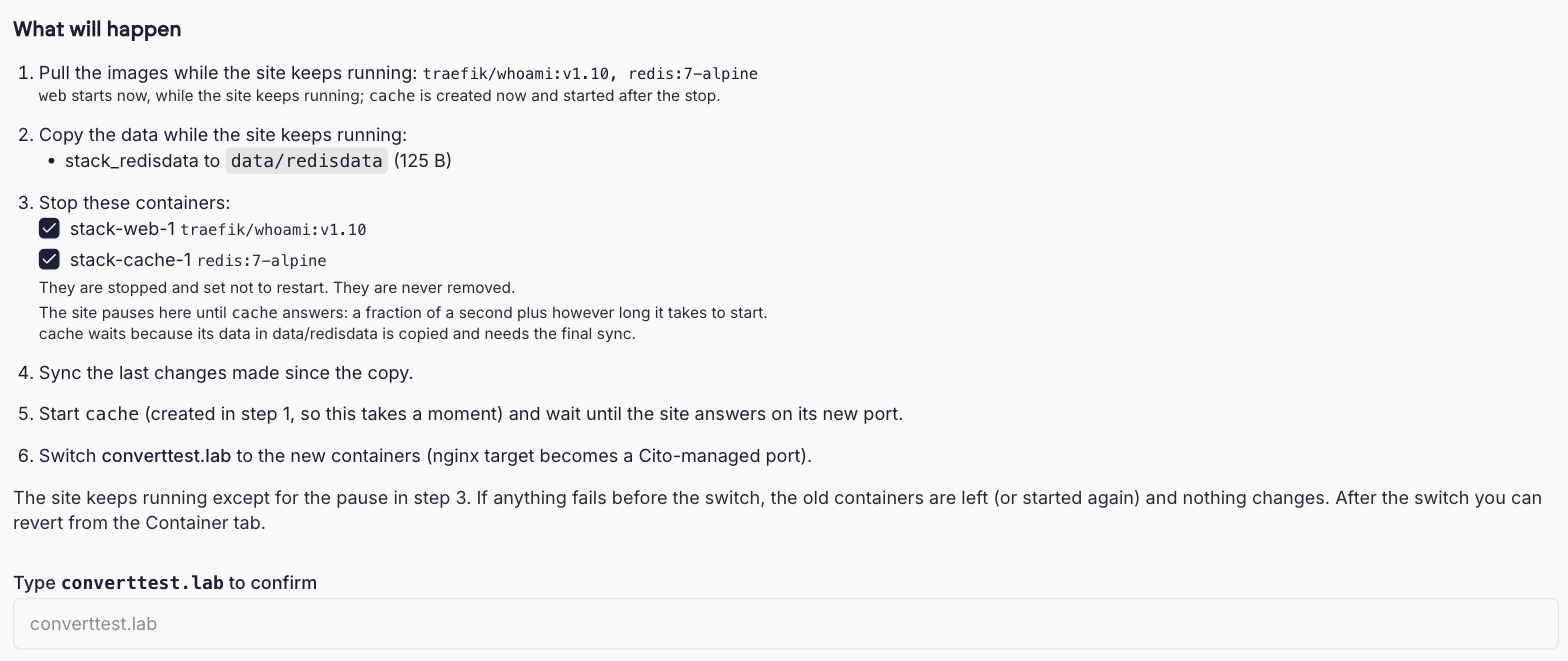 Untick a container under Stop to keep it running. Nothing you leave running is touched. Type the site’s hostname to confirm and click Convert site.
Will the site go down?
In most cases, no. Cito pulls the images and starts the new containers while your existing ones keep serving, then switches your domain only once the new containers answer. Your old containers are stopped last. The exception is a service that can’t safely run twice against the same data: a database or cache whose Docker volume is being copied, or that shares a bind-mounted folder with a container being stopped. That service is created in advance, then started only after the old container has stopped and the last changes have been synced. The site pauses from the stop until the new container answers, which took under a second with Redis in our testing, plus however long the service itself takes to start. The cut over list tells you before you confirm whether your conversion has a pause and which service causes it. Images that don’t write to their folders, such asnginx, node or php, start straight away even when they share a folder.
Cito refuses to start a conversion that would copy into a folder that already has files in it, for example
data/redisdata left over from a previous conversion. Clear the folder or untick the copy, and the message disappears as soon as the plan changes.Step 4: Progress
The final step follows the conversion live. Each step ticks as it completes, with the containers stopped and the data copied listed underneath.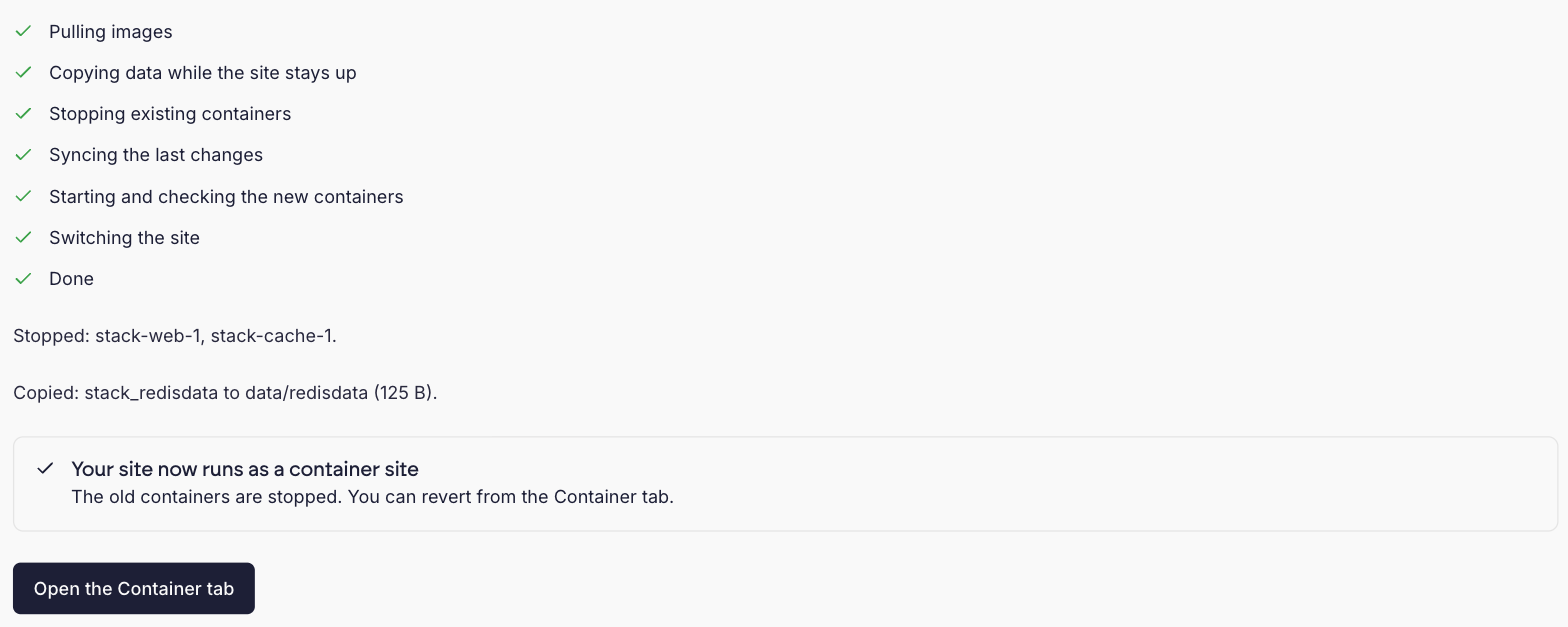 When it finishes, Open the Container tab takes you to the new site’s Containers tab, where everything works as for any other container site.
If a step fails before the switch, the conversion unwinds: the new containers are removed, any containers that were stopped are started again, and your domain keeps pointing where it did. The error is shown with a Try again button. Any data already copied stays in your home directory and is listed, so you can clear it before trying again.
After converting
- Your original containers are stopped and their restart policy is set to
no, so they don’t come back after a reboot. They are never removed, anddocker ps -astill lists them. - Your original Docker volumes are untouched. The copied data lives in your site’s home directory, with ownership mapped to the site user, so you can see it in the file manager.
- The Containers tab shows a Converted from a proxy site card with the date and the previous target.
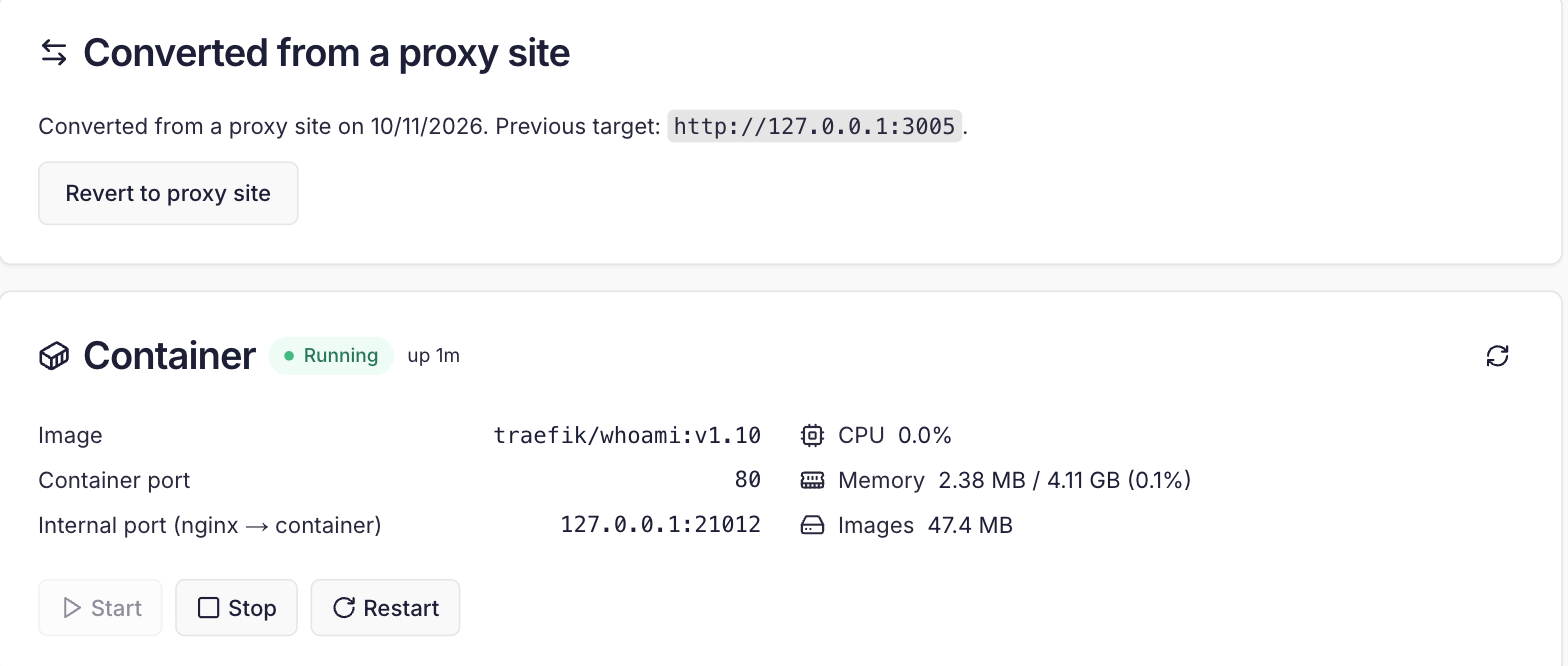
Reverting to a Proxy Pass site
Click Revert to proxy site on the Converted from a proxy site card. The dialog lists what will happen before you confirm.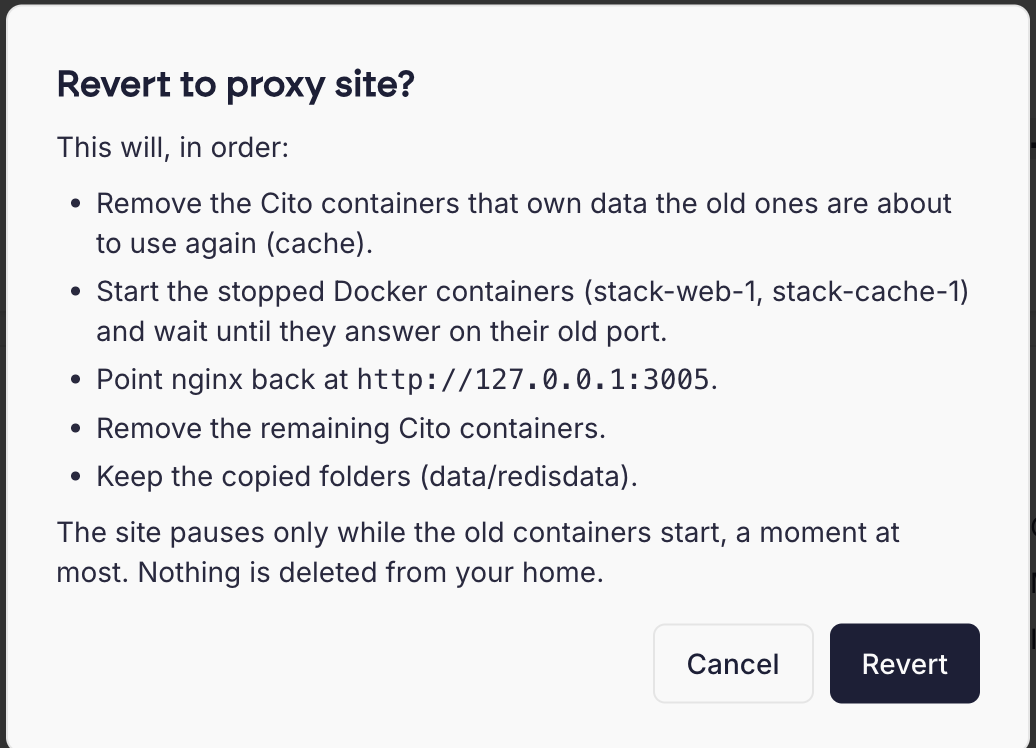 Cito starts your original containers again with their original restart policy, waits for them to answer, points your domain back at them, then removes the Cito containers. A service that waited during the conversion is removed first, so the two never run against the same data. Nothing is deleted from your home directory: the copied folders stay for you to keep or delete.
After reverting, the site is a Proxy Pass site again and Convert to a container site is back on the Site tab. Converting a second time copies into the same folders, so clear them first or untick the copy.
Using the MCP server
The same conversion is available to an AI assistant through the Cito MCP server:cito_inspect_site_docker shows what would be detected, and cito_convert_site_to_container and cito_revert_site_to_proxy carry out the conversion and the revert. Both ask the assistant to confirm with you before they run.