
What happens when a site is suspended
- Visitors to any page of the site see a branded “This account has been suspended” notice, over both HTTP and HTTPS.
- The site’s files, databases, and email are left completely untouched.
- Scheduled tasks (cron jobs) for the site stop running.
- SSH and SFTP access for the site user are paused.
Suspending a site
Open the site, go to its Settings, and scroll to the Danger Zone at the bottom. Choose Suspend Site. You will be asked to confirm, since this takes the site offline for visitors. Once confirmed, the site shows the suspension notice and a Suspended badge appears on the site.
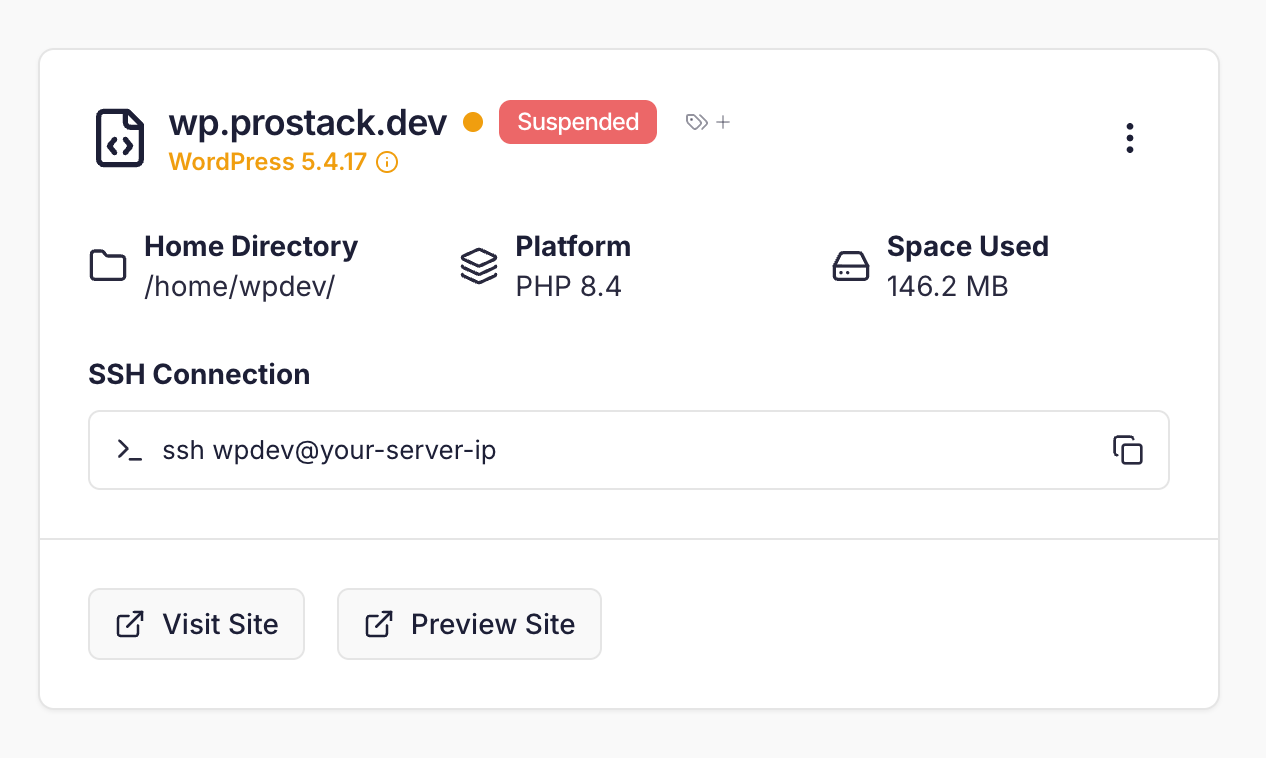
Only account owners and admins can suspend or unsuspend a site, the same as deleting a site.
Unsuspending a site
To bring the site back, return to the Danger Zone and choose Unsuspend Site. The site serves its own content again straight away, and its scheduled tasks and SSH/SFTP access are restored. No confirmation is needed.The suspension page
While a site is suspended, every address on it shows this page to visitors: